
Session Transcripts
One of the questions we get regularly from our users is, “Can I access my session transcripts?” The answer is “yes”.
If your settings are configured to allow for it, users in our Pro and Multi-Therapist plans can view transcripts of their own sessions. Read on to learn more about how to do this, and what the guardrails are.
PRIVACY FIRST
Viewing of session transcripts is NEVER enabled by default. While many TheraPro clinicians need this capability, many others never want their session transcripts to see the light of day. Which makes sense! We just finished our annual HIPAA training here at TheraPro, so we know the “minimum necessary” rule applies: if you don’t need to see your transcripts, don’t make them available. But if you need session transcripts for your clinical purposes, you can enable this capability yourself.
HOW TO ENABLE TRANSCRIPT VIEWING
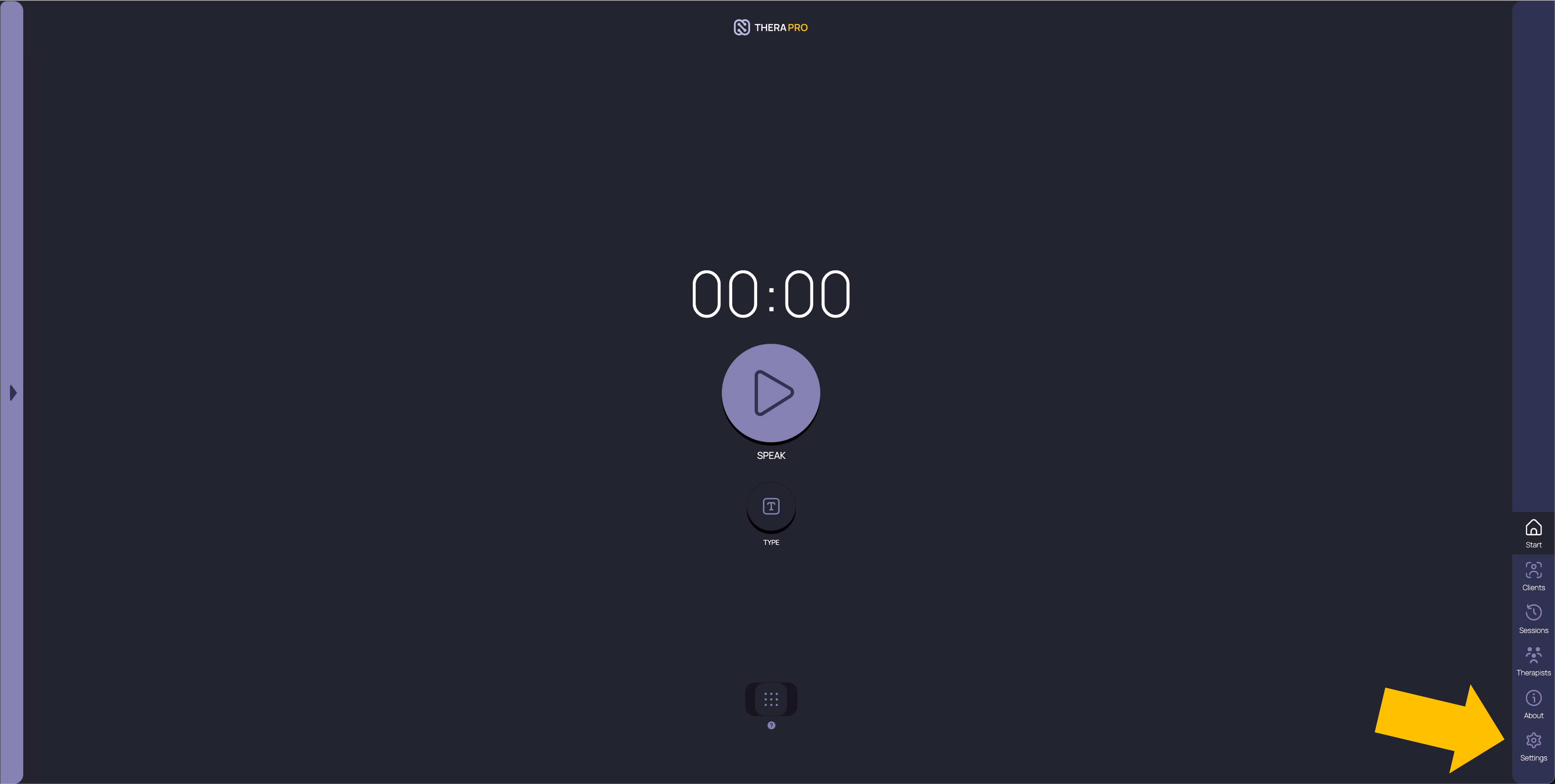
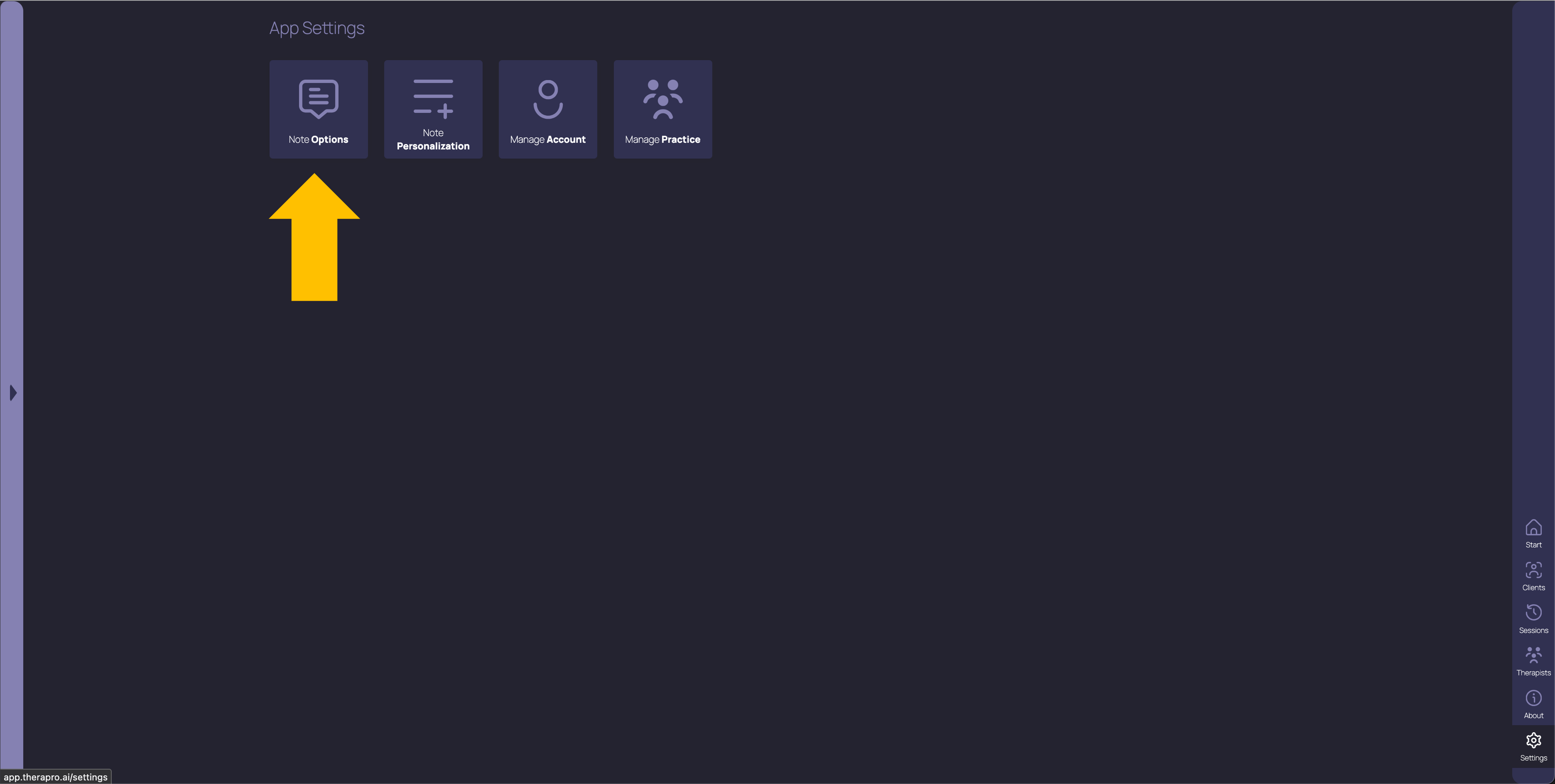
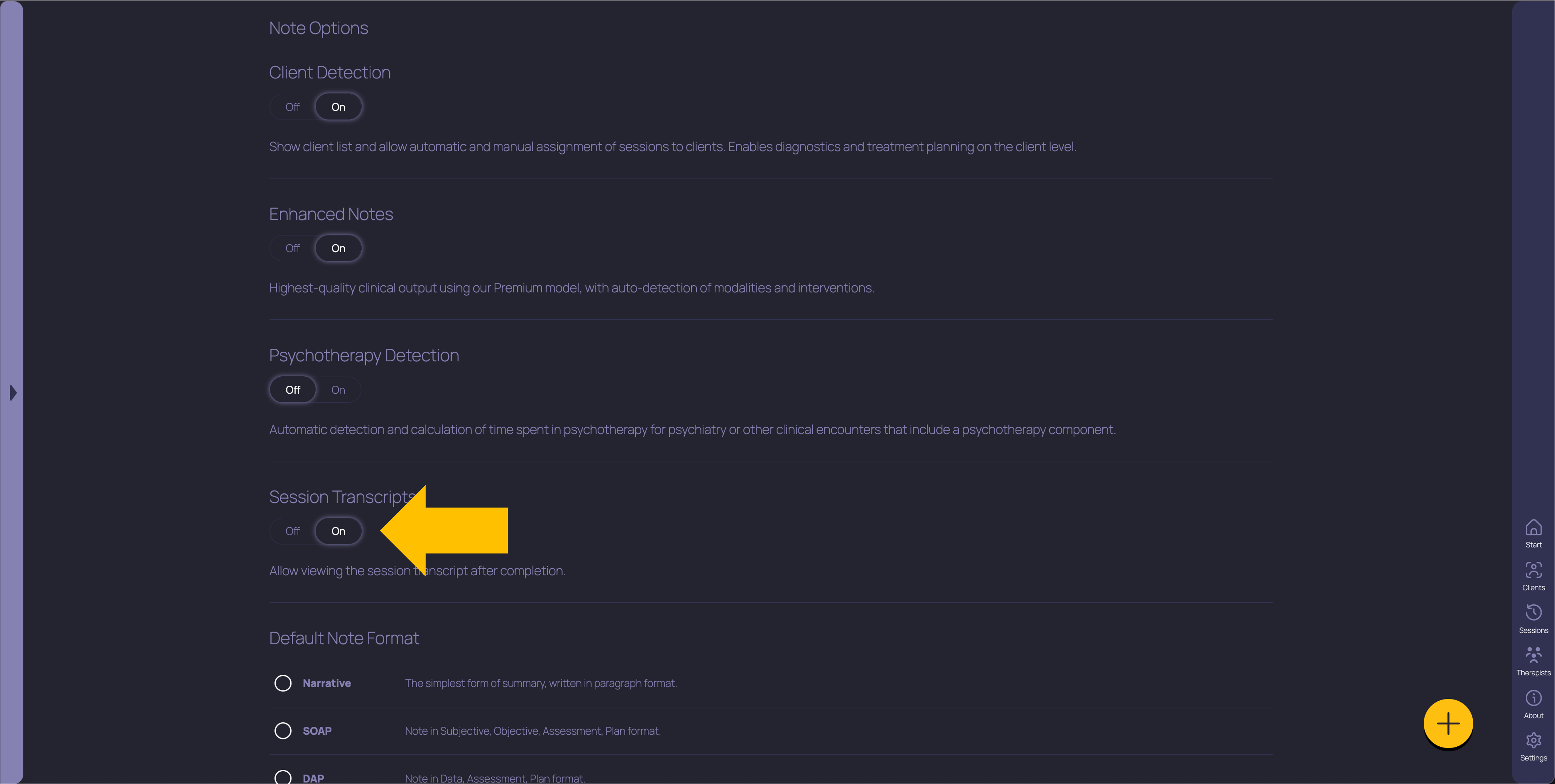
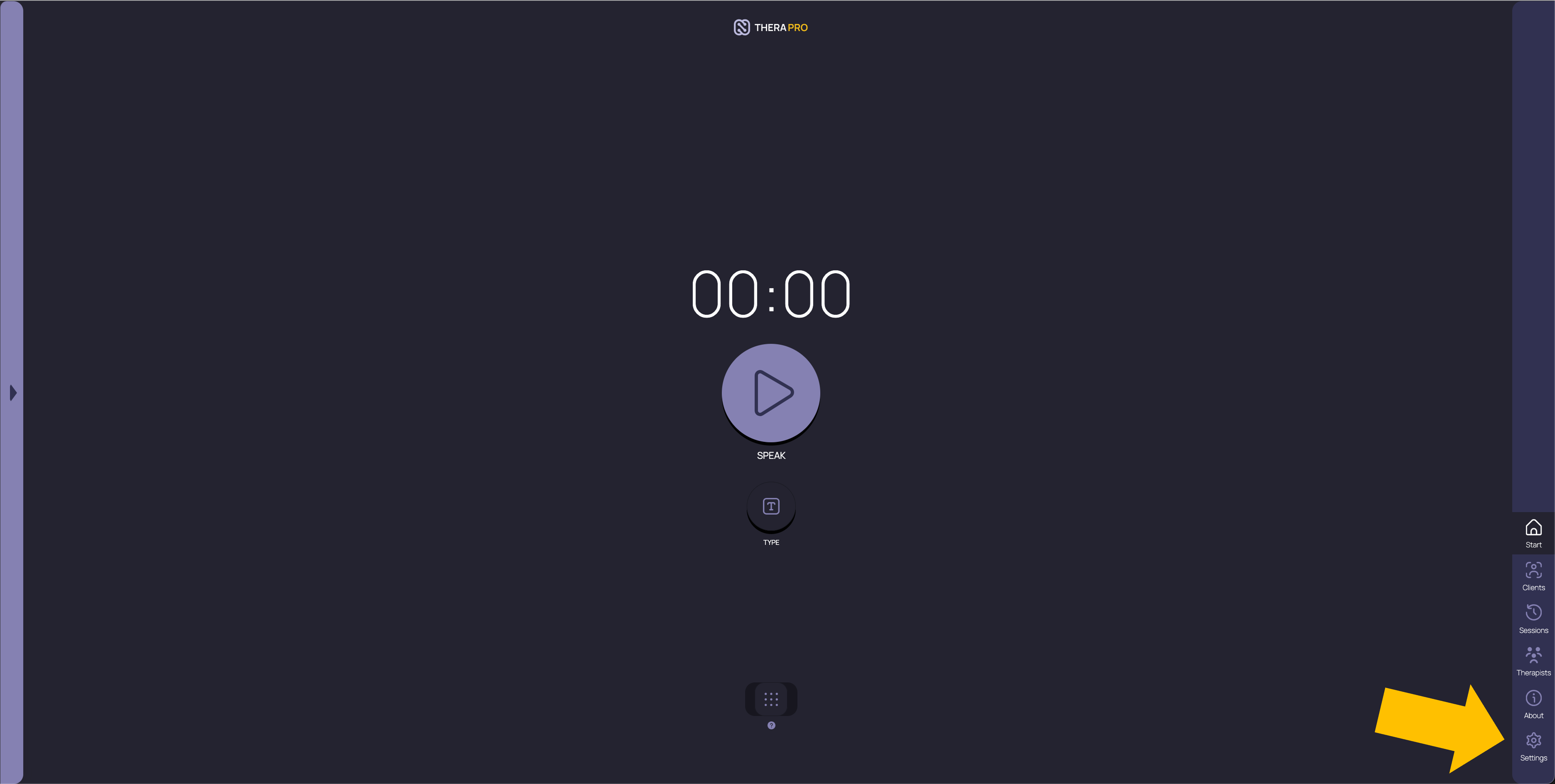
Go to Settings, select the first tile, Note Options, scroll down to Session Transcripts, and set the toggle to On. This setting always defaults to Off, so you need to take explicit action to enable the transcript viewing feature. And a reminder: you need to be in a Pro or Multi-Therapist plan to have access to this toggle.
HOW TO SEE YOUR TRANSCRIPT
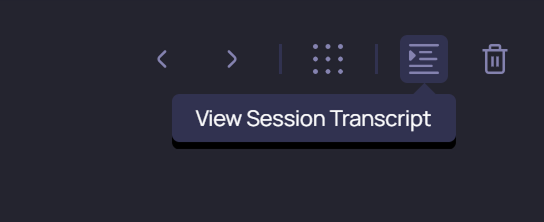
After transcript viewing is enabled, you’ll see a View Session Transcript button at the top right of your session detail page, right next to the Trash icon. Click this button and you’ll see a new tab in your browser open up containing the transcript for the current session.
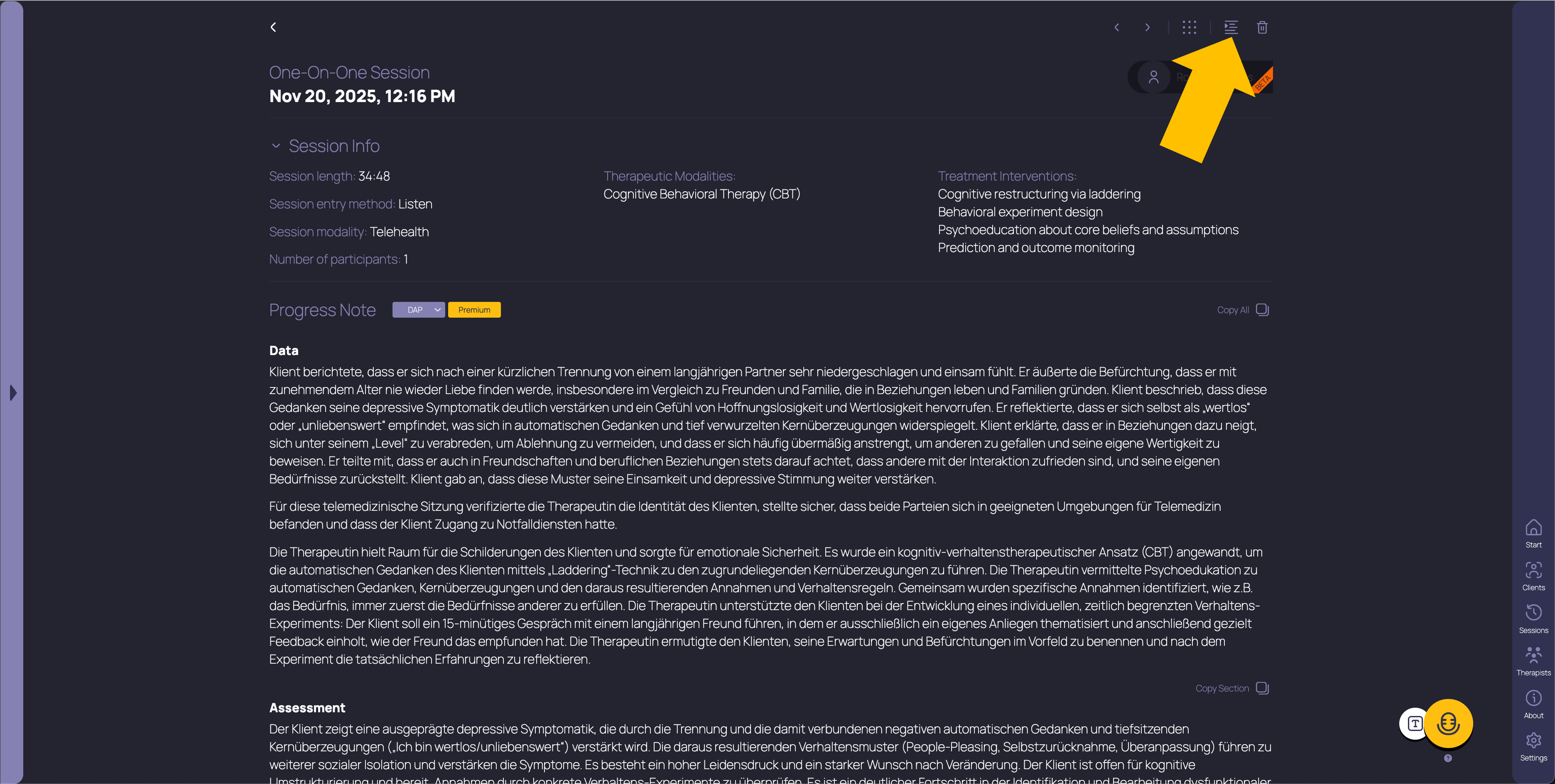

You can view your session transcript in this new tab, and when you’re done, just close the tab to return to your main TheraPro tab. The transcript is always transmitted in encrypted form to your browser, and it’s only accessible from within your browser, so when you close the browser tab containing your transcript, the content will be purged according to your browser’s cache settings. If you want to be sure the transcript is cleared right away, you can manually clear your browser’s cache to remove it.
We don’t provide a Save button for transcripts (yes, that’s intentional), but you can always copy and paste the content you need, or use your browser’s Print or Save function, if your clinical purposes require you to persist transcript content from the session. And remember, as with your session notes, once you delete the session, your transcripts are no longer available for viewing.
TRANSCRIPT VIEWING IN A CLINIC SETTING
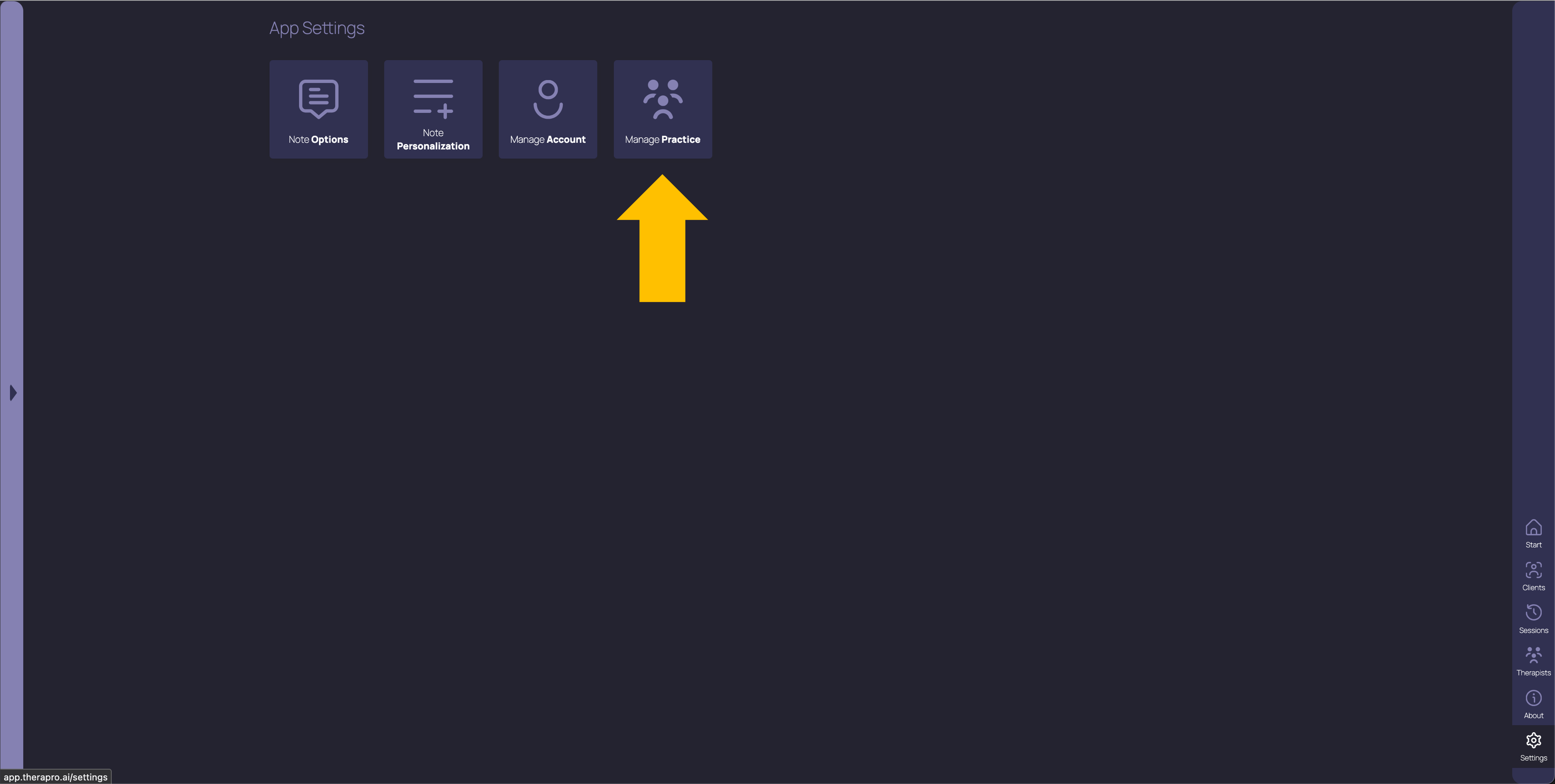
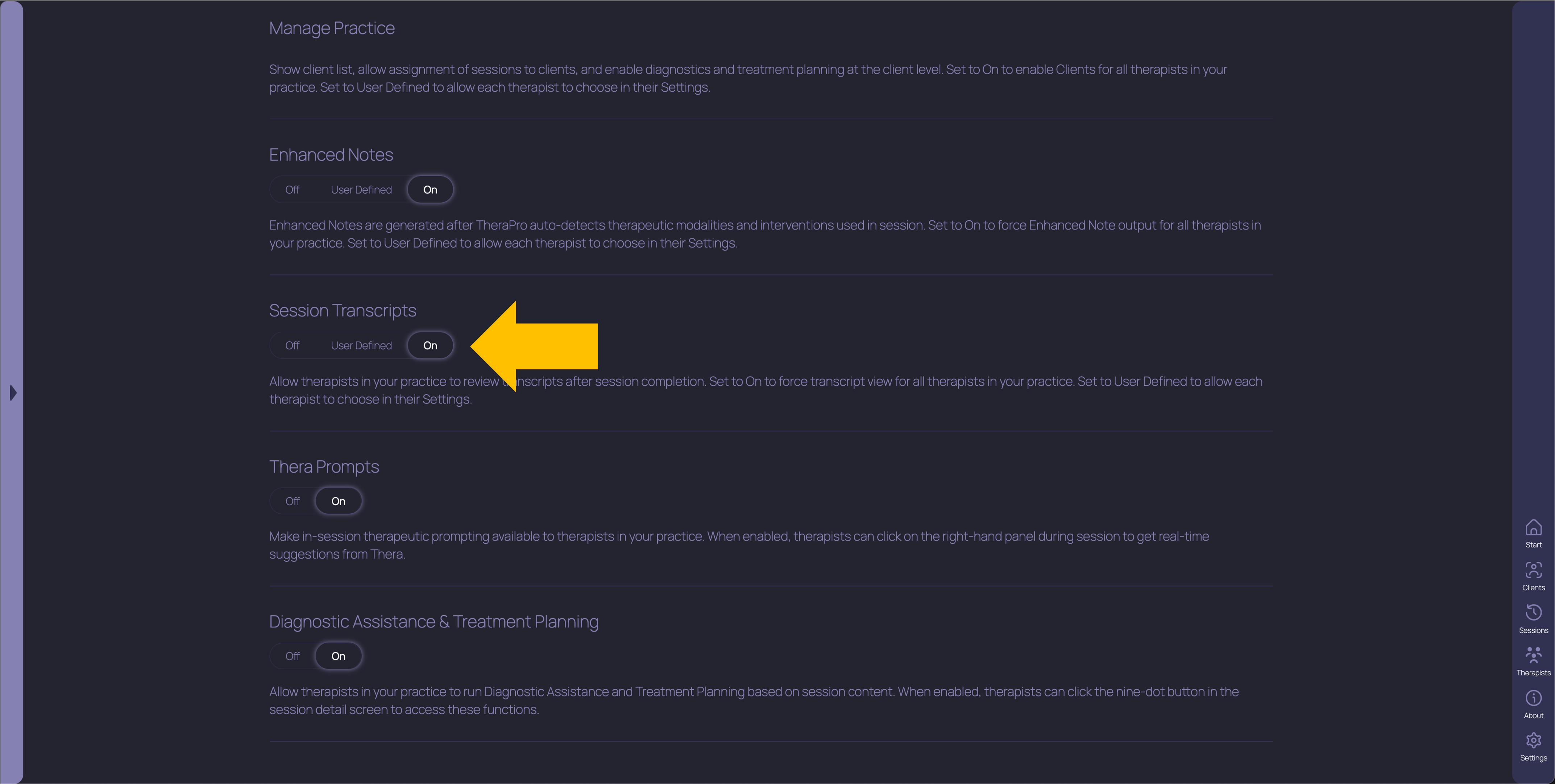
If you’re a clinician in a Multi-Therapist practice, your Practice Admin controls whether you can view your session transcripts. If you’re an Admin, go to Settings, click on the Manage Practice tile, then scroll down to the Session Transcripts toggle. Setting this toggle to On will cause the View Session Transcript button to appear as described above for all therapists in your clinic. Setting the toggle to User Defined will allow each clinician to choose individually, by following the procedure we outlined earlier. And setting the toggle to Off means this feature will not be available for any therapist in your clinic.
We know transcripts are a sensitive topic in clinical settings, and we want to treat them with the care they deserve while giving you as the clinician the advantages that TheraPro can give you in helping you deliver the best care possible to your clients. This is the tradeoff we’re navigating, and as always, we’d love to hear any comments or requests you have in this regard. Just reach out to us at hello@therapro.ai with those comments, or help@therapro.ai if you need any assistance navigating the platform, including viewing session transcripts. Thank you for using TheraPro.
Get started with TheraPro AI by checking out our Plans and Pricing, finding out more about How TheraPro Works, or seeing our approach to Security and Privacy. You can Contact Our Team to talk with a real person if you have questions, or Sign Up to create a free account and start using TheraPro AI today!